
If your QuikStor Technician has asked you to run Express Database Maintenance, please do the following.
1. Reboot your computer
- Click on Start, then Shut Down
- Select Shut Down and click OK
- Allow the computer to completely turn off. Wait 30 seconds or so.
- Turn the power in the computer back on
2. Close QuikStor Express
3. Exit QuikStor Guardian Control Panel (or Gate Controller)
-
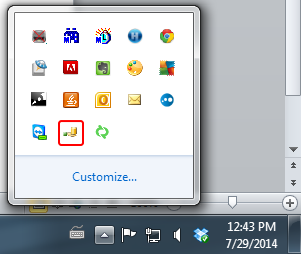
Guardian Control Panel right-click on the gray gear icon by your computer’s system clock and tell it to Exit
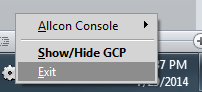
You may have to use the up arrow to expand the selection of icons if the gear icon is not visible.
- Gate Controller Right-click on the green square by your computer’s system clock and tell it Close Gate Controller
4. Stop and Close out of QuikStor Data Distributor (QDD) (if applicable)
Right-click on the QDD icon. Click STOP then EXIT. Select YES when asked if you want to close the replication service manager.
5. Windows 10 or 11: Type Run on the search window and select Run.
6. Type the following exactly, including punctuation, spaces, and capitalization:
c:\qsx\qsexpress.exe /RESTRUCT /REPAIR
This will load QuikStor Express with database maintenance. You can tell database maintenance is running because the QuikStor Express Splash Screen will display extra text such as “Backing Up” / “Restoring”.
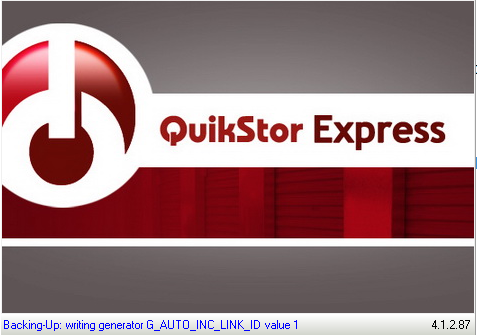
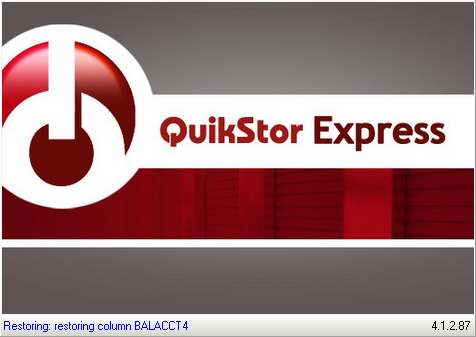
Once the database repair is finished your login screen will be displayed.
