
Expected move-outs can easily be entered into a tenant’s record within QuikStor Express. Below is an explanation of different ways to do this and the reports that reflect this information.
During Move In
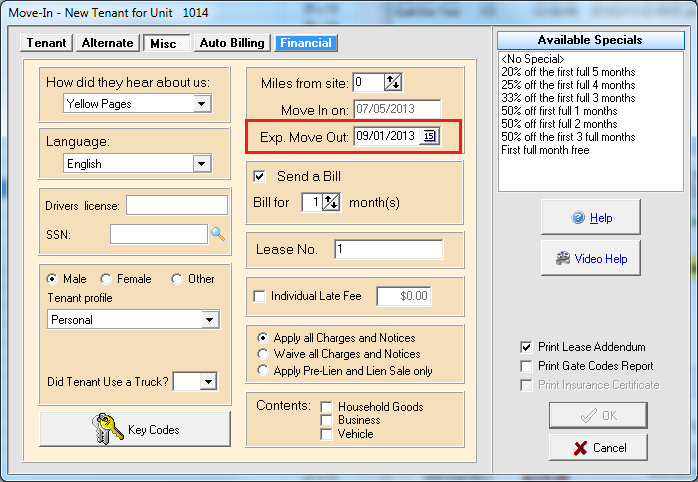
During the move-in process of QuikStor Express you can enter in the date for an expected move out by going to the Miscellaneous Tab of the Move-In form and in the upper right hand corner (as shown below) you will see the field where you can enter in the date. You can either enter this date in manually or use the drop down calendar to select the specific day you wish to input.
Existing Tenant
To set an expected move-out date for an existing tenant, select the tenant you want to work with and then go to the Tenant Menu and select Change Info. Select the Miscellaneous tab from the window and you will see a similar screen to the one shown above. Enter the date the same way – either manually inputting the date or using the drop down calendar. Once you have finished, click on the OK button to save the changes.
Report
There is a report you can use to check if tenants have been scheduled for an Expected Move-Out or not. This reported is explained below.
Expected Move-Outs Report (E-F-G)—This Report can be found by going to Reports -> Vacancy/Occupancy and selecting the Expected Move-Outs Report. This report lists current tenants who have given notice that they are vacating. Information includes date of Move-Out, unit, name, Paid-To-Date, size, balance, and security deposit.