
Edit a Slide
1. Navigate to Configuration > Website Editor and click Slides on the left side menu.
2. Click on the Edit button for the slide you wish to edit.
3. Make any of the following changes. Click the green Update button when done to save the changes.
Change Image
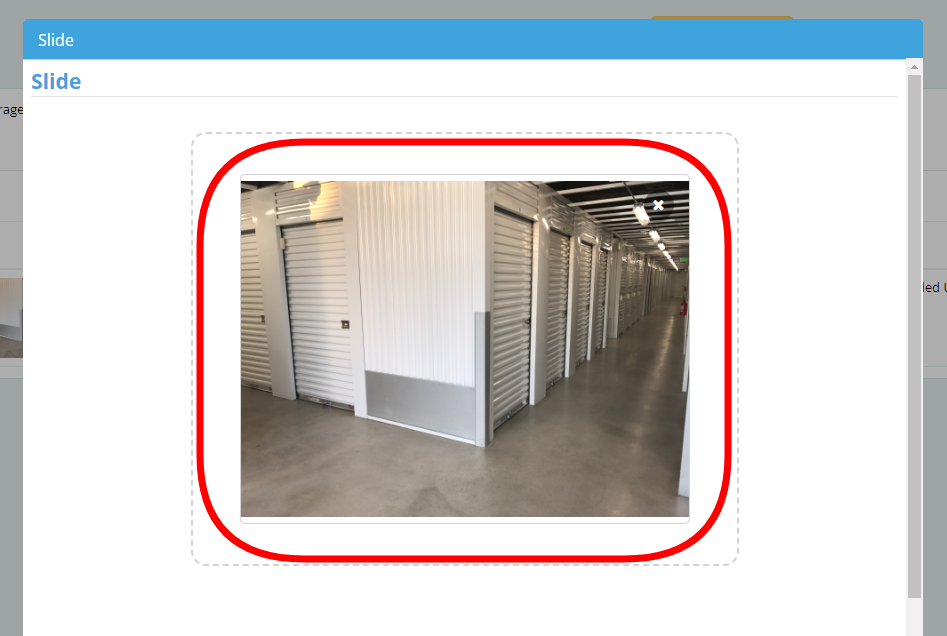
Click anywhere inside to open your devices file folder. Select and upload the new image you wish to use (process explained here).
NOTE: For best results, the images you use for the homepage slider should be 1400px wide by 598px high.
Change the Page that the Slide Links To
The slide image can be linked to another page on your website, and then clicking anywhere on the image will open the linked page.
Click on the Links To field to bring up a dropdown of all pages on the website. Select the one that you want the slide image to link to.
Arrow On/Off
Click on the Show Arrow toggle to turn the arrow on or off. (If you're not sure what the arrow is, see Slides & Translations Legend at the bottom of this page.)
Blue means the Arrow is ON:
No Color means the Arrow is OFF:
Translations: Label, Main Text, Sub Text
Click in any of these fields and add/edit/replace the existing text as you wish. Click Save when done.
NOTE: You will still need to click the green Update button after you have saved your Translation edits.
Slides & Translations Legend
The image below shows where the elements described in the preceding instructions appear on your Cloud website homepage. In this example, the Show Arrow toggle is enabled and the arrow is circled in green.